Everyone knows how to use a computer, even the people who thought using a computer was a stupid idea and computers would never hit the mainstream market back in the '80s and '90s have to use a computer now because everything is digitalized.
Although everyone can use a computer they don't know the basic components that are in a computer.
Today I'm going to explain the basic components inside a computer case.
A computer on a whole is a Big box with the power button and the connected items like a monitor, speakers, and other peripherals like a keyboard and a mouse.
Yeah, that's what comes to everyone's mind when you say the word computer, but these are all different devices & peripherals attached to the computer.
Components inside a Computer
Motherboard

The motherboard is the main circuit board that holds and allows the connection between many of the crucial electronic components of the computer. Such as CPU, Memory, connections for the hard drive, and optical drives, expansion cards to control the video, and audio, and connections of the computer's ports (such as USB ports). The motherboard connects directly or indirectly to every part of the computer.
CPU/Processor

The central processing unit(CPU), also called a processor, is located inside the computer on top of the motherboard. It is the brain of the computer, and its job is to carry out commands. Every keystroke, mouse click, or instruction to open an application is sent to the CPU.
The CPU is usually a two-inch ceramic square with a silicon chip located inside. The silicon chip is usually about the size of a thumbnail. The CPU fits into the motherboard's CPU socket, on top of that the thermal paste is applied in between CPU and the heat sink for the elimination of gaps and spaces and the heat dissipation, and then heat sink which goes on top of CPU for absorption of heat from the CPU.
A processor's speed is measured by megahertz (MHz), or millions per second; and gigahertz (GHz), or billions of instructions per second. A faster processor can execute instructions quickly. However, the speed of the computer depends on the speed of many different components, not just the processor.
RAM (Random access memory)

RAM is the short term memory of the computer, RAM only stores the data temporarily, RAM kicks in just when the currently running program needs temporary storage.
This short-term memory is turned off. if you're working on a document, spreadsheet or other types of file, you'll need to save it to avoid losing data. When you save a file, the data is written to the SSD or a hard drive, which acts as long-term storage.
RAM is measured in megabytes (MB) or gigabytes (GB). The more RAM you have, the more things your computer can do simultaneously. If your RAM is insufficient you may experience slow down of the PC when you work on multiple programs at once. The inclusion of extra RAM in the extra RAM slots available on your motherboard is a common practice, to improve the performance.
Storage drives (SSD/Hard drive)

These days it is common to see people using two drives as their long-term storage option in their computer, A Solid state drive (SSD) and a mechanical hard drive. An SSD is a faster drive but expensive, which is normally used as a Boot Drive and a hard drive is used for the large storage and due to the availability in cheaper options, people opt hard drives to store large files which are used less frequently.
When you run a program or open a file, the computer copies some of the data from the Hard drive onto the RAM. When you save a file, the data is copied back to the hard drive. The faster the hard drive/SSD the faster the computer can start up and load programs
Storage drives are where your software, documents, and other files are stored. These drives are long term storage, which means the data is still saved even if the computer is turned off abruptly; probably when there is a power cut.
Power supply unit (SMPS)
:max_bytes(150000):strip_icc()/power-supply-5aba984fba617700376b877f.PNG)
The power supply unit in a computer converts the power from the wall outlet to the type of power needed by the computer. It sends power through cables to the motherboard and other components.
Expansion Cards
Most computers have expansion slots on the motherboard that allows you to add various types of expansion cards. These are sometimes called PCI (peripheral component interconnect) cards. You may never need to add any PCI cards because most motherboards have built-in video, sound, network, and other capabilities,
However, if you want to boost the performance of your computer or update the capabilities of an older computer, you can always add one or more cards. Below are some of the most common types of expansion cards.
Video card(Graphics card)

The video card also known as a Graphics card is responsible for what you see in the monitor, as mentioned above There will be a built-in integrated video capability in the CPU and it can be accessed through the motherboard's output, in case you wanna do some basic work which doesn't demand that much video or graphics intensive workload this would be sufficient. But if you're planning to do a lot of graphics intensive work which demands an external Graphics card you may consider one. If you're a gamer, a graphics card is necessary since the onboard graphics can't handle the Graphics intensive latest AAA Gaming titles. Adding a faster and higher-end graphics card can elevate the performance of your productivity as well as gaming performance.
Network card

The network card allows your computer to communicate over a network and access the Internet. It can connect with Ethernet or through a wireless connection(often called Wi-Fi). Many motherboards have built-in network connections, and a network card can also be added to an expansion slot.
USB adapters
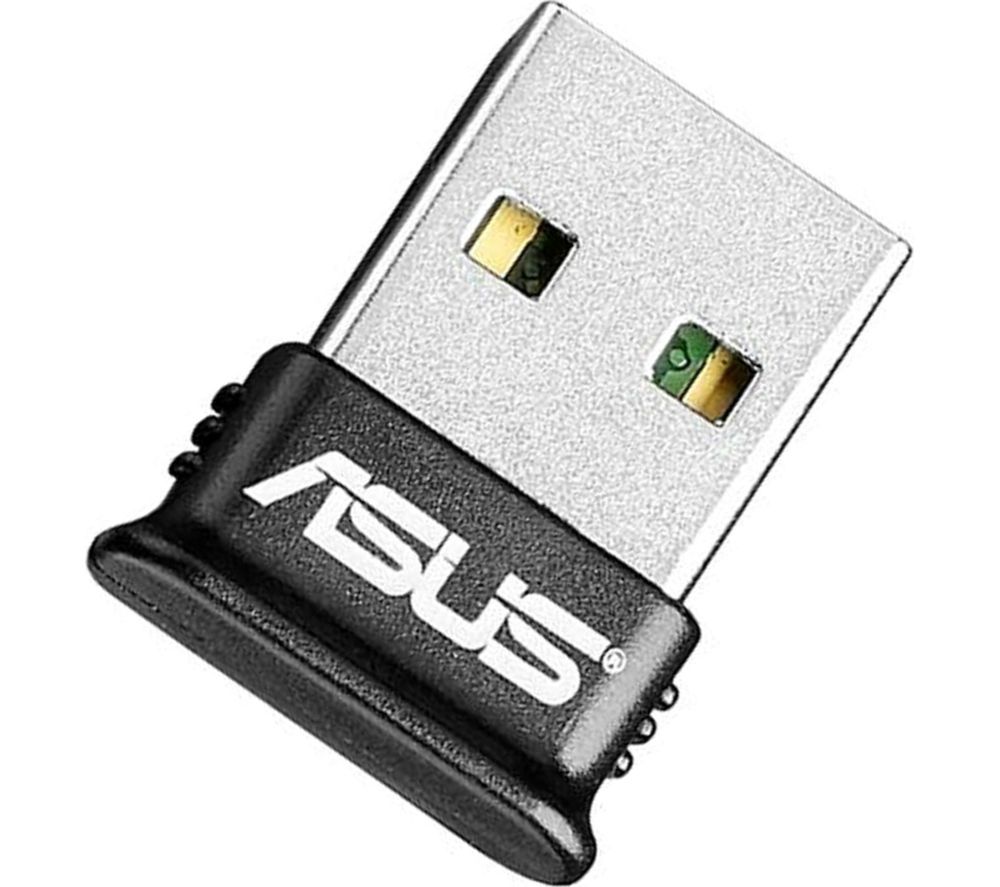
USB (Universal serial bus) port is not just for connecting your thumb drive or your external storage device, a USB port can also be used as an expansion slot to increase your wireless capabilities, there are Wi-Fi & Bluetooth USB adaptors which is normally plug & play it's really easy to use and convenient. A Bluetooth adaptor helps you connect and communicate with your wireless peripherals which use Bluetooth technology, Often these adapters are called as a dongle.
Input/output

Input/output normally called in short as I/O is what connects all other devices to your computer; like your monitor, speakers, printers & peripherals like keyboard and mouse. The I/O is protected by the I/O shield which is included with every motherboard. In some of the new and higher-end motherboards, I/O shield is already attached to the I/O. There are In modern computers there are also I/O ports in the front of the case like; audio and USB ports.